
Few things trigger panic in a Tesla owner quite like glancing down and seeing nothing but a dead, black touchscreen. Your speedometer is gone. Your navigation is gone. Climate controls, turn signals confirmation, backup camera, all gone. It feels like your car just bricked itself at 70 mph. Take a breath. You’re not stranded, and your car is almost certainly still drivable.
The most common fix for a Tesla screen black issue is a simple soft reset: press and hold both scroll wheels on your steering wheel for about 10 seconds until the Tesla logo appears. If that doesn’t work, a full power cycle (hard reset) through the vehicle’s settings or by disconnecting the 12V battery usually resolves the problem. The black screen is typically caused by a software glitch, a failed OTA update, or an aging low-voltage battery, not a catastrophic system failure.
This guide walks you through exactly why your Tesla screen goes black, how to fix it yourself step by step, and when you actually need professional help. Let’s get you back on the road.
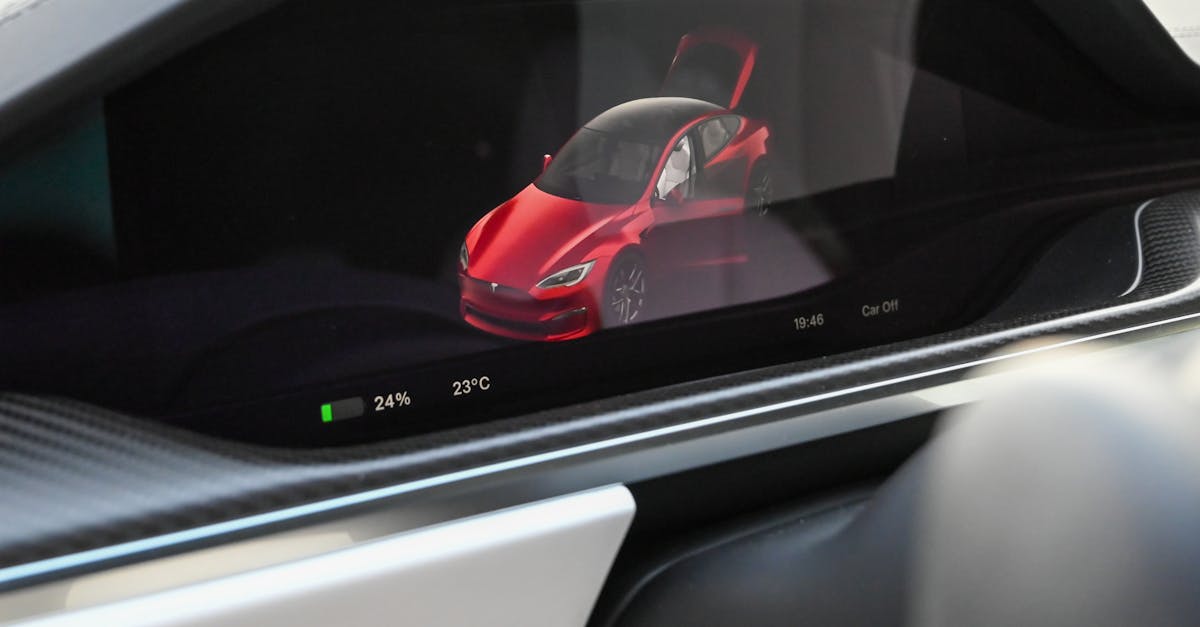
Why Your Tesla Screen Goes Black
Your Tesla’s touchscreen is the nerve center of the entire vehicle. Unlike traditional cars with separate gauge clusters and physical buttons, Tesla consolidated almost everything into that single display (or two, if you drive a Model S/X with an instrument cluster). So when it dies, it feels catastrophic. But the causes are usually straightforward and fixable.
Software Glitches and Failed Updates
Tesla pushes over-the-air (OTA) software updates regularly, sometimes multiple times a month. Most install without a hitch. But occasionally, an update fails mid-installation or introduces a bug that conflicts with your vehicle’s specific hardware configuration. When that happens, the infotainment computer can freeze or crash, leaving you with a black screen.
This is especially common on older MCU1 units (the Tegra-based processor found in pre-2018 Model S and Model X vehicles). These units have limited RAM and aging eMMC flash storage that degrades over time. Tesla actually issued a recall in 2021 addressing eMMC failures in MCU1 vehicles because the memory chips were wearing out from excessive logging. If you drive an older Tesla and haven’t upgraded to MCU2 or the newer AMD Ryzen-based infotainment computer, you’re statistically more likely to experience screen blackouts.
Even on newer MCU2 and Ryzen vehicles, software glitches happen. A Reddit user on r/TeslaMotors shared:
“My 2023 Model Y screen went black three times in one week after the holiday update. Scroll wheel reset fixed it every time, but it was annoying.”
Sometimes the screen goes black during an update that’s actively installing. If you interrupt power during an OTA update (by, say, unplugging your charger at the wrong moment or opening a door), the install can corrupt. Your screen may stay black until the system recovers or you force a reset.
The bottom line: most black screen events on newer Teslas trace back to software. They’re the digital equivalent of your laptop freezing. Frustrating, but rarely permanent.
Hardware and Electrical Issues
If software resets don’t fix your black screen, hardware is likely the culprit. The most common hardware cause is a dying 12V auxiliary battery (or the newer 16V lithium battery in refreshed models). Your Tesla actually has two battery systems: the massive high-voltage pack that drives the motors and a small low-voltage battery that powers the computers, lights, and electronics. When that 12V battery drops below a usable voltage, the infotainment system can brown out or refuse to boot entirely.
Tesla designed the car to warn you when your 12V battery is failing, but that warning appears on the screen. See the irony? If the battery dies suddenly, you might never get the alert. You’ll just find your car unresponsive one morning.
Here are the most common hardware causes of a Tesla black screen:
- 12V / 16V battery failure, The single most common hardware culprit, especially in vehicles over 3-4 years old
- eMMC flash storage degradation, Primarily affects MCU1 vehicles (pre-2018 Model S/X)
- Loose or corroded wiring harness connections, Can happen after service visits or in high-humidity environments
- GPU or processor failure, Rare on newer vehicles, but MCU1 units are prone to this
- Screen hardware failure, The LCD panel itself can fail, though this is uncommon
If your screen stays black after every reset method you try, one of these hardware issues is almost certainly to blame. A NOCO Boost Plus GB40 portable jump starter is worth keeping in your trunk, it can power the 12V system long enough to get the car operational if the auxiliary battery dies unexpectedly.

How to Fix a Black Tesla Screen
Let’s get practical. Below are the two primary methods to fix a Tesla screen black issue yourself, ordered from simplest to most involved.
Performing a Soft Reset
A soft reset (also called a scroll wheel reset) is your first line of defense. It reboots the infotainment computer without affecting the vehicle’s driving systems. Your car remains fully operational during this process, you can even do it while driving, though I’d recommend pulling over first.
Here’s how to do it: press and hold both scroll wheels on your steering wheel simultaneously. Hold them for roughly 10 seconds. The screen will go black (or stay black, in your case), and then the Tesla logo should appear. The full reboot takes about 60-90 seconds on MCU2 and Ryzen systems, and can take up to 2-3 minutes on older MCU1 hardware.
During the reboot, your climate control, audio, and navigation will be unavailable. But, your car’s drive systems, braking, steering, and turn signals all continue to function normally. The vehicle’s core driving computer is completely separate from the infotainment system.
This fix resolves the black screen about 80% of the time. It’s the Tesla equivalent of “turn it off and on again,” and honestly, it works surprisingly often. If your screen comes back but the issue recurs frequently, consider checking whether you have a pending software update that needs to install. Sometimes a stuck update causes repeated crashes until it successfully completes.
For monitoring your Tesla's software health between updates, an app like Teslascope gives you detailed tracking of your vehicle's firmware versions, update history, and known issues associated with each release. It's a handy SaaS tool that helps you stay ahead of problematic updates before they cause screen blackouts.
Performing a Hard Reset (Power Cycling)
If the soft reset doesn’t bring your screen back, you need a full power cycle. This is the “hard reset” and it completely shuts down and restarts every computer in the vehicle.
Follow these steps exactly:
- Sit in the driver’s seat and close all doors
- Go to Controls > Safety & Security > Power Off (if your screen is working enough to access menus)
- If the screen is completely unresponsive, press and hold the brake pedal while simultaneously pressing both scroll wheels for 10+ seconds
- After the car powers down, do not touch anything for a full 3 minutes, this is critical
- After 3 minutes, press the brake pedal to wake the car
That 3-minute wait isn’t arbitrary. Tesla’s computers need time to fully discharge their capacitors and clear cached data. Skipping this step is the number one reason people say “the hard reset didn’t work.” Be patient.
If neither reset method works, your 12V battery is very likely the problem. You can test it yourself with an inexpensive AstroAI Digital Multimeter, just measure across the 12V battery terminals. A healthy battery should read 12.4V or above. Anything below 11.8V under no load means the battery needs replacement.

Video Credit: It’s Electric / YouTube
When to Schedule a Service Appointment
Not every black screen issue is a DIY fix. Here are the clear signs you need professional help.
Schedule a Tesla Service appointment through the app if your screen stays black after both a soft reset and a full power cycle. If you’ve waited the full 3 minutes during the hard reset and the screen still won’t boot, something deeper is going on, likely a hardware failure that requires physical diagnosis.
You should also schedule service if the black screen keeps recurring. Once or twice after a buggy software update is normal. Weekly or daily occurrences point to failing hardware, particularly the eMMC storage on MCU1 vehicles or a degrading 12V battery that’s borderline but hasn’t fully died yet.
Here’s a quick comparison to help you decide:
| Symptom | Likely Cause | DIY Fix? |
|---|---|---|
| Screen goes black randomly, scroll wheel reset fixes it | Software glitch | Yes |
| Screen black after OTA update | Failed/interrupted update | Usually yes |
| Screen stays black after hard reset | 12V battery or hardware failure | Service needed |
| Screen flickers or shows artifacts before going black | GPU or LCD failure | Service needed |
| Car completely unresponsive (no lights, no locks) | 12V battery dead | Replace battery or service |
Tesla’s mobile service technicians can handle most screen-related repairs at your home or office. MCU replacements, 12V battery swaps, and firmware reflashes are all within the scope of mobile service. You typically don’t need a tow unless the car physically won’t shift out of park.
How to Drive Safely With a Black Screen
Here’s the good news that calms most Tesla owners down: your car drives perfectly fine with a black screen. The touchscreen runs on the infotainment computer. The driving computer is a completely separate system. Your accelerator, brakes, power steering, and even Autopilot (if it was engaged before the screen died) all continue to function.
That said, you lose some important features. Your speedometer disappears, so you’ll need to estimate your speed or use a phone GPS app like Waze that shows your current speed. Your turn signal indicators won’t appear on screen, but the actual turn signals still work, you’ll hear the clicking sound. Your backup camera will be unavailable, so use your mirrors and turn your head like it’s 2005.
Climate control is the one that catches people off guard. With no screen, you can’t adjust your AC or heating. If it was running before the screen died, it may continue running at the last setting. If not, you’re stuck with windows.
As one Tesla owner on the Tesla Motors Club forum put it:
“Drove 45 minutes home with a dead screen on my Model 3. Honestly, the car drove completely normal. I just couldn’t see my speed, which was nerve-wracking on the highway.”
The safest approach is to pull over when it’s safe, attempt a scroll wheel reset, and wait for the screen to reboot. If it doesn’t come back, drive carefully to your destination using your phone for navigation and speed monitoring. Don’t panic. The car itself is fine.
Preventing Tesla Screen Blackouts in the Future
Prevention beats troubleshooting every time. A few simple habits can dramatically reduce your chances of experiencing a Tesla screen black event.
First, keep your Tesla’s software up to date and let updates install completely. Don’t open doors, unplug chargers, or interact with the car during an OTA update. Tesla updates typically take 25-45 minutes. Let the car finish. If you see a notification that an update is available, install it while the car is parked at home overnight on a stable Wi-Fi connection.
Second, monitor your 12V battery health. Tesla replaced the traditional lead-acid 12V with a lithium 16V battery starting with the 2021 Model S/X refresh and later the 2024 Model 3 Highland. The lithium version lasts significantly longer, but older Teslas still use lead-acid 12V batteries that typically need replacement every 3-5 years. Check your battery voltage periodically, especially if your car is more than three years old.
Third, if you own an MCU1 vehicle, seriously consider the MCU2 upgrade. Tesla offers this as a paid retrofit, and it dramatically improves system stability, speed, and reduces the screen blackout risk associated with eMMC degradation. According to Tesla’s support page, the infotainment upgrade also enables features like Tesla Theater, Sentry Mode live viewing, and faster navigation loading.
Finally, avoid letting your Tesla sit unplugged for extended periods. The 12V battery charges from the main pack, but only when the car has sufficient high-voltage charge. If you leave a Tesla sitting for weeks with a low state of charge, the 12V battery can drain completely, which leads to, you guessed it, a black screen on your next attempt to use the car.
Keep these habits in check and you’ll likely never deal with a Tesla screen black issue again. And if you do, you now know exactly what to do.
Frequently Asked Questions
What causes a Tesla screen black issue while driving?
A Tesla screen black issue is most commonly caused by a software glitch, a failed over-the-air (OTA) update, or a dying 12V auxiliary battery. Older MCU1 vehicles are especially prone due to degrading eMMC flash storage. In most cases, the problem is temporary and fixable with a simple reset.
How do I fix a Tesla black screen with a soft reset?
Press and hold both scroll wheels on your steering wheel simultaneously for about 10 seconds until the Tesla logo appears. The reboot takes 60–90 seconds on newer systems. This soft reset resolves roughly 80% of Tesla screen black events and can even be performed while driving, though pulling over first is recommended.
Is it safe to drive a Tesla with a black screen?
Yes, a Tesla drives normally with a black screen. The driving computer is completely separate from the infotainment system, so your accelerator, brakes, steering, and even Autopilot continue to function. However, you’ll lose your speedometer, backup camera, and climate controls, so use a phone GPS app to monitor your speed.
What should I do if my Tesla screen stays black after a reset?
Try a full hard reset by pressing the brake pedal while holding both scroll wheels for 10+ seconds, then wait a full 3 minutes before pressing the brake to wake the car. If the screen still won’t boot, your 12V battery likely needs replacement or you may have a hardware failure requiring a Tesla Service appointment.
How often should I replace my Tesla’s 12V battery to prevent screen issues?
Traditional lead-acid 12V batteries in older Teslas typically need replacement every 3–5 years. Newer models (2021+ Model S/X refresh and 2024 Model 3 Highland) use a longer-lasting lithium 16V battery. Periodically checking your battery voltage with a multimeter—anything below 11.8V signals it’s time for a replacement.
Does a Tesla screen black issue void the warranty?
No, a Tesla screen black issue does not void your warranty. Screen failures caused by software glitches or defective hardware like eMMC degradation are generally covered under Tesla’s Basic Vehicle Warranty (4 years/50,000 miles). Tesla even issued a recall for MCU1 eMMC failures, so affected owners may qualify for a free replacement.
Sources:
- Tesla Support, Touchscreen Overview
- NHTSA Recall 21V-950: MCU eMMC Failure
- Tesla Motors Club, Black Screen Troubleshooting Thread
- Reddit r/TeslaMotors Community
- Tesla Support, Infotainment Upgrade
Read More: