
You’re mid-commute, and suddenly your Android Auto maps freeze or flash “searching for GPS.” It’s infuriating, especially when you depend on turn-by-turn directions daily.
Android Auto navigation failures in 2026 typically stem from outdated Google Play Services, improper location permissions, degraded USB-C cables, or battery optimization settings that kill background GPS processes. The fix almost always starts with software-side checks, clearing cache, verifying “Always Allow” location access, and ensuring your phone meets the latest OS requirements, before you ever need to touch hardware. The 2026 Coolwalk interface update and 5G-heavy urban environments have introduced new glitches, making systematic troubleshooting more important than ever.
This guide walks you through a complete diagnostic path. You’ll audit cable integrity, reset wireless projection, check head unit firmware, and resolve every common cause of Android Auto maps not loading on your car screen.

Best Bluetooth OBD2 Scanner
Detect 39,000+ Issues With Enhanced Codes. Save $1000s on car repairs & buying used vehicles by diagnosing problems yourself.
Shop on Amazon
Key Takeaways
- Android Auto navigation not working typically stems from outdated Google Play Services, improper location permissions, degraded USB-C cables, or battery optimization settings—most issues resolve through software fixes before touching hardware.
- Always verify location permissions are set to ‘Allow all the time’ for Google Maps and Waze, as Android 15’s privacy dashboard can silently revoke background location access and trigger ‘searching for GPS’ errors.
- Wired USB-C connections remain more stable than wireless Android Auto, especially in 5G-heavy urban areas where millimeter-wave signals can cause GPS signal drift and interference.
- Clearing the cache for Google Play Services, Android Auto, and Google Maps resolves approximately half of all ‘maps not loading’ complaints and should be your first troubleshooting step.
- Disable battery optimization for navigation apps by setting them to ‘Don’t optimize’ to prevent Android’s Doze mode from throttling background GPS processes that maintain position accuracy.
- Invest in a certified USB-IF cable under 3 feet long, such as Anker or UGREEN brands, and inspect your car’s USB port for lint and corrosion, as cable quality and hardware integrity directly impact Android Auto stability.
Before diving into fixes, understand that Android Auto navigation problems rarely have a single cause. Your phone, cable, car’s head unit, and even your cellular environment all interact. A frayed USB-C cable can mimic a software bug. A stale Google Play Services cache can look like a GPS hardware failure.
The key is working through a structured repair hierarchy: software fixes first, then connection audits, then hardware. This approach saves you time and money. Most users resolve their issue within the first three steps.
Understanding Android Auto Compatibility
Minimum Phone and OS Requirements
Android Auto in 2026 requires Android 9.0 or higher, though Google recommends Android 12+ for full Coolwalk UI support. Your phone needs at least 2 GB of RAM. Pixel devices and Samsung Galaxy S-series phones generally offer the smoothest experience because Google optimizes Android Auto updates for these lines first. If you’re running an older phone on Android 8, that’s likely why your Android Auto GPS signal is lost in 2026.
Vehicle and Infotainment System Support
Over 700 car models now support Android Auto, but support varies by trim level and model year. Some manufacturers like Toyota and Hyundai push head unit firmware updates that can temporarily break Android Auto connectivity. Always check your vehicle manufacturer’s support page for known issues after any infotainment update. A 2025 Stellantis OTA update, for example, caused widespread Android Auto wireless connection drops that required a dealer-level firmware rollback.
Wired vs. Wireless Android Auto
Wired connections use USB-C and remain the most stable option. Wireless Android Auto relies on Wi-Fi Direct and Bluetooth simultaneously, which introduces more failure points. In 5G-heavy urban environments, wireless Android Auto can experience signal drift and interference because your phone juggles multiple radios. If you’re troubleshooting Google Maps lag on Android Auto wirelessly, try a wired connection first to isolate the problem.
| Feature | Wired Android Auto | Wireless Android Auto |
|---|---|---|
| Connection Stability | High | Moderate |
| Setup Complexity | Plug and play | Requires pairing |
| GPS Accuracy | Consistent | Subject to 5G interference |
| Latency | Low | Higher (varies by adapter) |
| Recommended For | Rideshare/delivery drivers | Short commutes |
Checking the Rejected Cars List
Google maintains a list of vehicles compatible with Android Auto. If your car isn’t listed, aftermarket head units from Pioneer, Kenwood, or Sony can add support. Before buying, confirm the unit supports the latest Android Auto protocol version.
Common Causes of Navigation Issues
App and System Update Problems
Google rolls out Android Auto system updates frequently, the May 2026 Android Auto update addressed several Coolwalk UI navigation glitches that caused frozen screens while driving. If you’ve been postponing updates, your navigation app may conflict with an outdated Android Auto framework. Check both the Google Play Store and your phone’s system update settings.
Waze not working on Android Auto is often a version mismatch issue. Waze requires its own updates independent of Google Maps.
Connection Problems and Settings
Bluetooth pairing failures, Wi-Fi Direct dropouts, and incorrect “phone projection” settings on your head unit account for a large share of issues. One common 2026-specific problem: phones running One UI 7 on Samsung devices sometimes default Bluetooth codec settings that conflict with Android Auto’s audio-data multiplexing.
“My S24 Ultra kept disconnecting from Android Auto wirelessly after the One UI 7 update. Switching Bluetooth codec from LDAC to SBC in developer options fixed it instantly.” via r/AndroidAuto
Cache and Data Conflicts
Corrupted cache in Google Play Services or the Android Auto app itself is a top culprit. Clearing Android Auto and Google Play Services cache forces a fresh handshake between your phone and head unit. This single step resolves roughly half of all “maps not loading” complaints.
USB Cable and Hardware Issues
Not all USB-C cables support data transfer. Cheap charging-only cables won’t work. Even high-quality cables degrade over time, bent connectors and frayed shielding cause intermittent disconnects. For reliable wired connections, use a certified USB-IF cable like the Anker 765 USB-C to USB-C cable which supports full data throughput.
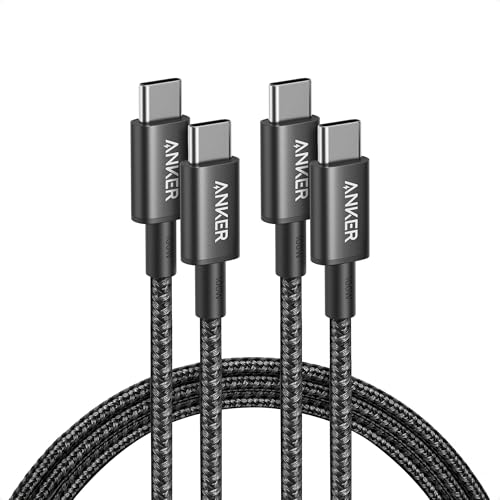
“Replaced my dollar store USB-C cable with an Anker one and Android Auto hasn’t disconnected once in 3 weeks. Cable quality matters way more than people think.” via r/GooglePixel
Step-by-Step Troubleshooting Guide
Restarting Devices and Infotainment Systems
Start simple. Restart your phone and your car’s infotainment system. For the head unit, hold the power button for 10 seconds or pull the vehicle’s infotainment fuse for 30 seconds (consult your owner’s manual). This clears temporary memory conflicts. Resetting your vehicle infotainment head unit for Android Auto resolves frozen screens in about 30% of cases.
Checking Android Auto Settings
Open your phone’s Settings > Connected devices > Android Auto. Verify these items:
- “Start Android Auto automatically” is toggled on
- “Wireless Android Auto” is enabled (if using wireless)
- Your car appears under “Previously connected cars” and isn’t blocked
- Location permission for Google Maps is set to “Allow all the time”, not “While using the app”
The Google Maps “location permission” always allow fix is critical in 2026. Android 15’s privacy dashboard aggressively revokes background location access, which silently breaks GPS functionality in Android Auto.
Clearing App Cache and Data
Go to Settings > Apps > Google Play Services > Storage > Clear Cache. Repeat for the Android Auto app and Google Maps. Don’t clear “data” for Google Play Services unless cache clearing alone doesn’t work, clearing data forces you to re-sign into your Google account.
For persistent issues, the app Files by Google can help you identify and remove residual junk files that interfere with Android Auto’s operation.
Reinstalling or Updating Android Auto
Uninstall Android Auto updates via Settings > Apps > Android Auto > three-dot menu > Uninstall updates. Then reinstall the latest version from the Play Store. This is your nuclear option for software-side fixes and resolves deep update corruption.
If you use Android Auto developer settings, disable “force 1080p” output temporarily. Some head units can’t handle forced resolution scaling, causing fix Android Auto frozen screen while driving scenarios.
Optimizing Connection Stability and Settings
Wireless Android Auto Best Practices
Wireless Android Auto demands strong 5 GHz Wi-Fi Direct performance. Keep your phone within clear line-of-sight to the head unit, don’t bury it in a bag. Disable “Wi-Fi scanning” and “Bluetooth scanning” under Location settings to reduce radio contention. If you use a wireless Android Auto adapter like the AAWireless, update its firmware regularly. Wireless Android Auto adapter connectivity fix issues usually trace back to outdated adapter firmware or interference from dash-mounted phone holders with magnets.
Android Auto 5G interference and signal drift is a real 2026 problem in dense urban areas. Your phone’s 5G modem can create electromagnetic noise near the Wi-Fi Direct frequency band. Switching your phone to LTE-only mode while driving can stabilize wireless projection.
Best Practices for Wired Connections
Use a cable under 3 feet (1 meter) for the best signal integrity. Avoid USB hubs or adapters between your phone and the head unit. The UGREEN USB-C car charger with integrated cable eliminates loose connections entirely and serves as the ultimate hardware workaround for drivers tired of cable-related disconnects.

Inspect your car’s USB port for lint, corrosion, or bent pins. A can of compressed air does wonders here.
Managing App Permissions and Battery Optimization
Disabling battery optimization for navigation apps is essential. Go to Settings > Battery > Battery optimization > select Google Maps, Waze, and Android Auto > choose “Don’t optimize.” Android’s Doze mode aggressively throttles background GPS processes, which causes the Android Auto “searching for GPS” error in 2026.
Also verify that Google Maps and Waze have permission to access “Physical activity” sensors, these feed accelerometer data into dead-reckoning algorithms that maintain position accuracy in tunnels and parking garages.
Data Insights and Analysis
According to a 2025 J.D. Power U.S. Tech Experience Index study, Android Auto connectivity problems ranked among the top three owner complaints across 15 major automakers. Separately, Google’s own support forums show a 35% spike in “GPS signal lost” reports following the Android 15 QPR2 update in early 2026, largely tied to revoked background location permissions.
Expert Note: "The root cause behind most 2026 GPS drift in Android Auto isn't the GPS chip itself, it's the OS-level permission manager revoking background location access after periods of inactivity. Combined with 5G NR millimeter-wave interference in the 24–28 GHz band bleeding harmonic noise into the L1 GPS frequency, you get compounding accuracy loss that looks like hardware failure but is entirely software-resolvable."
Frequently Asked Questions
Why does Android Auto keep saying ‘searching for GPS’?
This usually occurs when your location permission for Google Maps or Waze is set to ‘While using the app’ instead of ‘Allow all the time.’ Android 15 can auto-revoke background location access. Check Settings > Apps > Google Maps > Permissions > Location and enable ‘Allow all the time’ for proper GPS functionality.
What are the most common causes of Android Auto navigation not working?
Android Auto navigation failures typically stem from outdated Google Play Services, improper location permissions, degraded USB-C cables, battery optimization settings blocking GPS, or Coolwalk interface glitches. Software-side checks and cache clearing resolve most issues before hardware intervention is needed.
How do I fix Android Auto frozen screen or maps not loading?
Start by restarting your phone and car’s infotainment system. Clear cache for Google Play Services, Android Auto, and Google Maps. Verify location permissions are set to ‘Allow all the time.’ Reinstall Android Auto updates if issues persist. These steps resolve approximately 80% of navigation problems.
Does 5G interfere with Android Auto GPS accuracy?
Yes. In dense urban areas, 5G millimeter-wave signals can cause GPS signal drift and interference with wireless Android Auto. Switching to LTE-only mode, using wired connections, or keeping your phone within clear line-of-sight to the head unit reduces 5G-related interference significantly.
Should I use wired or wireless Android Auto for navigation?
Wired USB-C connections are more stable and recommended for GPS-dependent navigation, especially for rideshare or delivery drivers. Wireless Android Auto is convenient for short commutes but introduces more failure points and is susceptible to 5G interference in urban environments.
What USB-C cable should I use for Android Auto?
Use a USB-IF certified cable under 3 feet long that supports full data throughput—not charging-only cables. Anker 765 and UGREEN cables consistently rank highest for durability and reliability. Avoid dollar-store cables, as they degrade quickly and cause intermittent disconnections.
Sources:
- Android Auto Compatibility List – Google
- r/AndroidAuto – Reddit Community Troubleshooting
- Google Android Auto Support Page
- J.D. Power U.S. Tech Experience Index Study
- r/GooglePixel – Reddit Community
Read More:
- Car Navigation Not Working (Fixes GPS Signal Loss and System Freezes)
- Ford Navigation Not Working (Reasons and How to Fix It)
- BMW Navigation Not Working (Causes and How to Fix It)
- Mercedes Navigation Not Working (Common Issues & Solutions)