This post contains affiliate links. Purchases may earn me a commission at no extra cost to you.
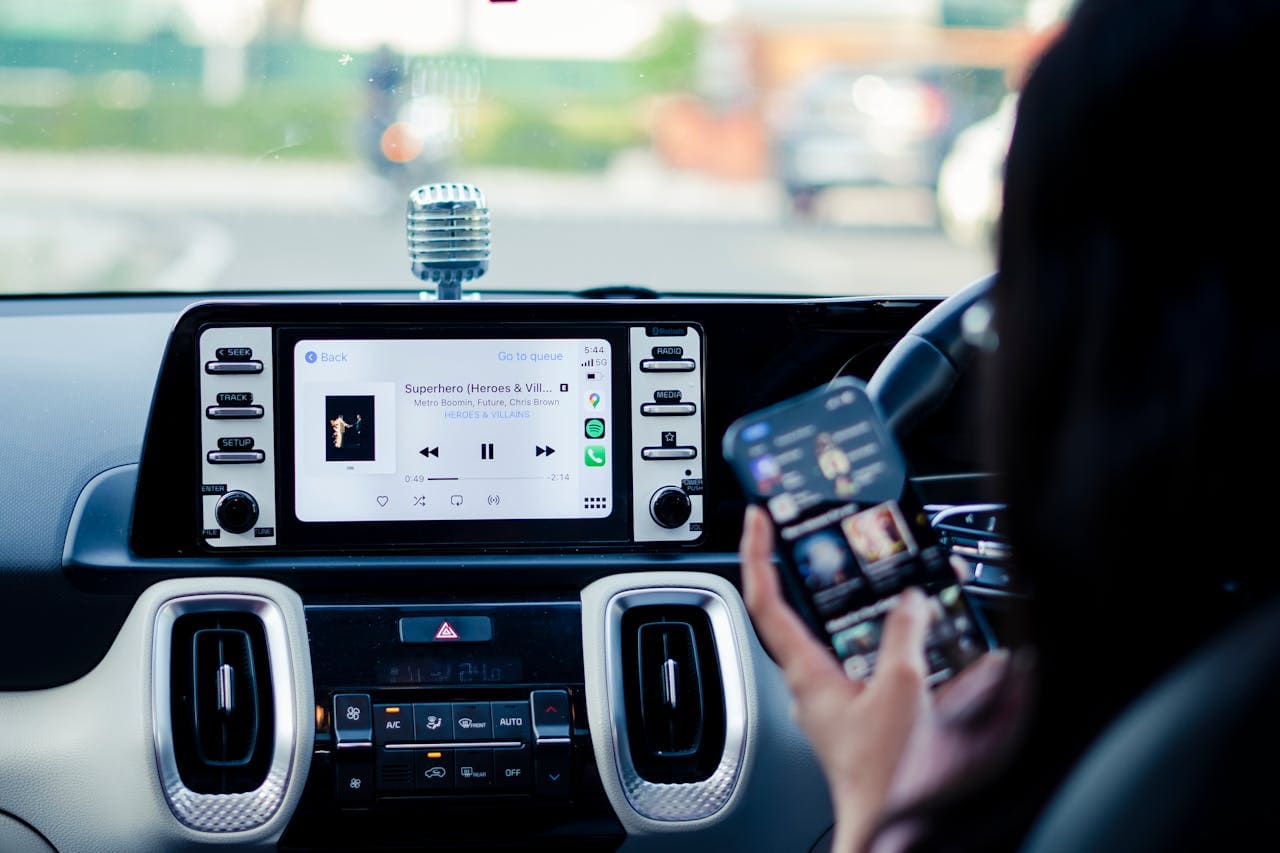
Your CarPlay screen freezes mid-route, the GPS pin drifts three blocks east, or Apple Maps simply refuses to load. You’re not alone, and you don’t need a dealership visit to fix it.
The most common reasons Apple CarPlay navigation stops working include faulty USB-C cable data connections, disabled Precise Location permissions, outdated iOS or head unit firmware, and wireless interference from 5G ultra-wideband signals in dense urban areas. In nearly every case, you can restore full functionality by working through a systematic diagnostic sequence, starting with cable and Location Services checks, then moving to CarPlay restriction audits and software updates, before considering any hardware service.
Key Takeaways
Apple CarPlay navigation failures most commonly stem from faulty USB-C cable connections, disabled Precise Location permissions, outdated iOS firmware, and wireless interference in urban 5G areas.
Enable Precise Location in Settings > Privacy & Security > Location Services to prevent GPS drift and eliminate the ‘Searching for GPS’ error that affects many users.
Use only certified MFi USB-C cables for wired CarPlay, as non-certified cables may charge your phone but fail to maintain stable data connections.
If Apple CarPlay navigation persists in freezing or disconnecting, reset your network settings and forget/re-pair your vehicle from Bluetooth to clear corrupted connection data.
Wireless CarPlay systems generate 30% more reported issues than wired connections according to 2025 J.D. Power data, making cable-based connections the more reliable option.
After major iOS updates, manually verify that CarPlay isn’t accidentally restricted under Settings > Screen Time > Content & Privacy Restrictions to restore full functionality.
Primary Reasons for Navigation Failures
CarPlay navigation failures fall into four categories. Understanding which one applies to your situation saves you from trial-and-error frustration.
A shaky connection between your iPhone and the head unit is the single most frequent cause of CarPlay navigation problems. Wired setups depend entirely on USB-C cable data integrity, a cable that charges fine may still fail to maintain a stable CarPlay data stream. Wireless CarPlay relies on both Bluetooth for the initial handshake and Wi-Fi for sustained data transfer. If either protocol drops, your maps freeze or disconnect entirely.
In 2026, wireless CarPlay adapters have surged in popularity, but many introduce latency that causes map rendering lag. If you’re using a third-party wireless adapter, try removing it from the chain temporarily to isolate the problem.
Software Glitches and Updates
Apple Maps, Google Maps, and Waze all receive frequent updates that can introduce temporary bugs on CarPlay. An outdated iOS version, or a head unit running old firmware, creates compatibility mismatches. iOS 19 introduced changes to how CarPlay handles location data handoffs, and some vehicles haven’t received matching firmware patches yet.
Compatibility and Permissions
iOS requires explicit permissions for CarPlay to access Location Services, Siri, and cellular data. A single toggled-off permission can silently break navigation. This is especially common after a major iOS update, which sometimes resets privacy settings without warning.
Interface and Hardware Limitations
Next-Gen CarPlay’s multi-screen synchronization, now rolling out in select 2026 models, introduces a new failure point. Instrument cluster and center display screens can desync, showing conflicting navigation data. Also, a damaged Lightning or USB-C port on either the phone or vehicle side can cause intermittent dropouts that mimic software bugs.
“My CarPlay keeps showing ‘Searching for GPS’ every time I drive through downtown. Swapped cables, restarted everything. Turns out it was my Precise Location toggle being off after the iOS update.” via r/CarPlay
Troubleshooting Connection Problems
Start here. Connection issues account for the majority of CarPlay navigation failures, and they’re the fastest to diagnose.
Wired CarPlay: Cable and Port Issues
Not all USB-C cables support data transfer. Many cheap cables only carry power. Use a certified MFi USB-C cable for CarPlay, Apple’s MFi certification program guarantees data throughput standards. Inspect your cable for fraying or bent pins.
Test the cable with a different device to confirm it transfers data. Then check your vehicle’s USB port: blow out dust with compressed air and ensure the port isn’t loose. If your vehicle has multiple USB ports, try each one, some are power-only.
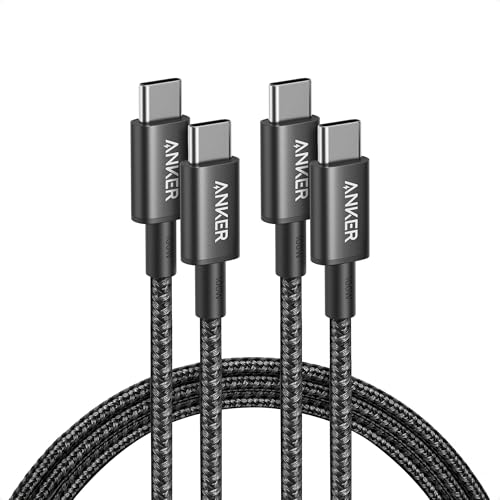
A solid upgrade here is the Anker 765 USB-C to USB-C cable, which supports high-speed data transfer and carries MFi-equivalent certification for reliability.
Anker USB C to USB C Cable, 2-Pack 6 FT (1.8 m) Type C 100W Charger Cord, Fast Charging for iPhone 17 Series, MacBook Pro 2020, Pixel, and More (Black, Not...
Wireless CarPlay requires both Bluetooth and Wi-Fi to be enabled simultaneously. Go to Settings > Wi-Fi and confirm it’s on, even if you’re using cellular data for internet. Then check Settings > Bluetooth and verify your vehicle appears as a paired device.
If you experience frequent wireless CarPlay connection drops, forget the vehicle from your Bluetooth list and re-pair from scratch. In urban areas, 5G ultra-wideband signals operating on millimeter-wave frequencies can cause positioning drift and Wi-Fi interference. Moving to a less congested area often resolves the issue immediately.
Problem
Likely Cause
Quick Fix
Maps freeze mid-route
Cable data interruption
Swap to certified MFi cable
GPS shows wrong location
Precise Location disabled
Enable in Location Services
CarPlay disconnects randomly
Bluetooth pairing corrupt
Forget and re-pair vehicle
Map tiles won’t load
Outdated app or iOS
Update all apps and iOS
Lag on wireless CarPlay
Adapter latency
Remove adapter, test direct
CarPlay Not Detected by the Infotainment System
If your car doesn’t detect CarPlay at all, check Settings > General > CarPlay on your iPhone. Your vehicle should appear in the list. If it doesn’t, restart both the iPhone and the vehicle’s infotainment system. Some head units require you to enable CarPlay or smartphone mirroring in the vehicle’s settings menu, consult your owner’s manual.
For persistent detection failures, reset your vehicle’s infotainment system to factory defaults. This won’t affect your car’s mechanical systems.
Essential iPhone and App Settings to Review
Software-side fixes resolve most CarPlay navigation issues without any hardware changes.
Checking and Enabling CarPlay Permissions
Go to Settings > Privacy & Security > Location Services. Confirm Location Services is turned on globally. Then scroll to Apple Maps (or Google Maps / Waze) and set the permission to While Using the App. Most importantly, enable the Precise Location toggle, without it, CarPlay relies on approximate cell-tower positioning, which causes the GPS drift that drives users crazy.
Also check Settings > Privacy & Security > Location Services > System Services > Significant Locations. Clearing your Significant Locations history can resolve persistent GPS accuracy issues, as corrupted location cache data sometimes conflicts with real-time positioning.
Siri and Content Restrictions
CarPlay requires Siri to function. If you’ve disabled Siri, CarPlay won’t launch. Go to Settings > Siri & Search and ensure Siri is enabled. Also, check Settings > Screen Time > Content & Privacy Restrictions > Allowed Apps and confirm CarPlay isn’t restricted.
“After updating to iOS 19, my Screen Time settings somehow blocked CarPlay. Took me two hours to figure out it was under Content Restrictions. Such a hidden setting.” via r/iPhone
Allow CarPlay and Siri While Locked
Your iPhone must allow CarPlay to operate while the screen is locked. Go to Settings > General > CarPlay, select your vehicle, and confirm it’s set to allow connections. Then check Settings > Face ID & Passcode (or Touch ID & Passcode) and enable Allow Access When Locked for CarPlay and Siri.
For clearing Apple Maps cache specifically, you can offload the app via Settings > General > iPhone Storage > Maps > Offload App, then reinstall it. This clears cached map data without deleting your favorites.
Advanced Fixes and Reset Solutions
Resetting CarPlay on iPhone and Car
To reset CarPlay settings on your iPhone, go to Settings > General > CarPlay, tap your vehicle name, then tap Forget This Car. Restart your iPhone, then reconnect. On the vehicle side, navigate to the infotainment system’s connectivity or phone settings and delete your iPhone from the paired devices list.
If you use a wireless CarPlay adapter like the Carlinkit 5.0 Wireless CarPlay Adapter, perform a factory reset on the adapter itself, most models have a pinhole reset button.
CarlinKit 5.0 Wireless CarPlay/Android Auto Adapter USB for Factory Wired Cars (Model Year: 2015 to 2026), Convert Wired Apple CarPlay & Android Auto to...
Update your iPhone to the latest iOS version via Settings > General > Software Update. Then update all navigation apps through the App Store. For your vehicle, check the manufacturer’s website for head unit firmware updates, brands like BMW, Ford, and Volkswagen have released 2026 firmware patches specifically addressing CarPlay synchronization bugs.
Apple’s CarPlay support page maintains a current list of compatible vehicles and known issues worth checking.
Resolving Persistent Navigation Glitches
If GPS drift, frozen maps, or “Searching for GPS” errors persist after all software fixes:
Reset network settings: Settings > General > Transfer or Reset iPhone > Reset > Reset Network Settings
Reset location and privacy settings: Same path, select Reset Location & Privacy
Test GPS outdoors without CarPlay to isolate whether the issue is iPhone-side or vehicle-side
For Next-Gen CarPlay multi-display glitches, disable the secondary instrument cluster display temporarily to confirm the center screen works independently
Data Insights and Analysis
According to a 2025 J.D. Power U.S. Tech Experience Index study, infotainment connectivity problems, including CarPlay failures, remain the top complaint among new vehicle owners, with wireless CarPlay systems generating 30% more reported issues than wired connections. Apple’s own support forums show a measurable spike in CarPlay GPS-related threads following major iOS releases, particularly in urban areas with dense 5G millimeter-wave coverage.
Expert Note: "CarPlay GPS drift in urban canyons isn't a software defect, it's a physics problem. Millimeter-wave 5G signals reflect off glass and steel structures, creating multipath interference that confuses the iPhone's location stack. The fix is enabling Precise Location, which forces the device to prioritize GPS and GLONASS satellite data over cell-tower triangulation."
Frequently Asked Questions
What are the most common reasons Apple CarPlay navigation stops working?
The primary causes include faulty USB-C cable data connections, disabled Precise Location permissions, outdated iOS or head unit firmware, and wireless interference from 5G signals in urban areas. Systematic diagnostic checks starting with cables and Location Services can resolve nearly every case.
How do I fix my Apple CarPlay GPS showing the wrong location?
Enable Precise Location in Settings > Privacy & Security > Location Services. GPS drift commonly occurs when Precise Location is disabled, forcing your iPhone to rely on approximate cell-tower positioning instead of satellite data and GLONASS signals.
Why does my CarPlay disconnect randomly while driving?
Random disconnections typically stem from corrupted Bluetooth pairing or cable data interruptions. Resolve this by forgetting your vehicle from Settings > Bluetooth and re-pairing from scratch, or by testing a certified MFi USB-C cable for wired CarPlay connections.
Can I use any USB-C cable for Apple CarPlay, or does it need to be certified?
You must use a certified MFi USB-C cable for CarPlay—many cheaper cables only support power transfer, not data. MFi certification guarantees data throughput standards required for stable navigation streaming and map loading.
How does 5G interference affect Apple CarPlay navigation in cities?
Millimeter-wave 5G signals reflect off glass and steel structures, creating multipath interference that causes GPS positioning errors and map lag. Enabling Precise Location forces your iPhone to prioritize satellite GPS and GLONASS data over cell-tower triangulation, reducing drift.
What should I check if my vehicle doesn’t detect CarPlay at all?
First, verify your vehicle appears in Settings > General > CarPlay on your iPhone. Then restart both your iPhone and the vehicle’s infotainment system. Some head units require enabling CarPlay in the vehicle’s settings menu—consult your owner’s manual or reset the infotainment system to factory defaults.
Disclaimer: This content is provided for educational and informational purposes only. Equipment symptoms, repairs, and diagnostic procedures may vary by make, model, year, and condition. Always consult a qualified technician, your equipment’s service manual, and verified manufacturer recalls or service bulletins before performing repairs. GearFixes.com assumes no liability for damages resulting from the use of information on this site.