This post contains affiliate links. Purchases may earn me a commission at no extra cost to you.
Your Lexus navigation screen is stuck, the map won’t load, or you’re seeing a persistent “Searching for GPS” error. You’re not alone, and you don’t need a dealer visit yet.
The most common fix for Lexus navigation not working in 2026 is a “Volume Knob Soft Reset”, press and hold the power/volume knob for 10–15 seconds until the system reboots. This resolves the majority of frozen screens, “Map is Centering” loops, and cloud navigation loading failures. If that doesn’t work, check your Drive Connect subscription status, clear the navigation cache, and verify your system software is current. For older 2010–2018 models affected by the 3G Enform sunset, standalone GPS and smartphone mirroring through Apple CarPlay or Android Auto are your best permanent solutions.
This guide walks you through a complete diagnostic hierarchy, software resets first, subscription and OTA update checks second, and hardware inspections last, so you can fix Lexus navigation issues at home before considering expensive head unit replacements.
The volume knob soft reset (10–15 seconds) resolves the majority of Lexus navigation not working issues, including frozen screens and ‘Map is Centering’ loops.
Check your Drive Connect subscription status and verify your system software is current; outdated subscriptions and stalled OTA updates are common causes of navigation failures.
For 2010–2018 Lexus models affected by the 3G network sunset, use standalone GPS updates via USB or smartphone mirroring with Apple CarPlay and Android Auto as permanent solutions.
Low 12V battery voltage below 11.8 volts can cause erratic infotainment behavior, GPS signal drops, and system reboots, so battery health should be checked regularly.
If multiple resets, software updates, and subscription checks don’t resolve the issue, you’re likely dealing with hardware failure and should escalate to an authorized Lexus service center for a system reflash.
Identifying Common Lexus Navigation System Issues
Before you start troubleshooting, you need to identify exactly what’s going wrong. Lexus navigation failures fall into three main categories, and each points to a different root cause.
System Malfunctions and Error Symptoms
The most reported symptom in 2025–2026 Lexus models is the “Map is Centering” loop, where cloud navigation attempts to load but never completes. You’ll also encounter full system freezes where the 14-inch touchscreen on newer NX, RX, and TX models becomes completely unresponsive. Some owners report the navigation app crashing back to the home screen repeatedly.
Drive Connect handshake errors are another frequent issue. Your system tries to authenticate with Lexus cloud servers but fails, leaving you with a blank map or a “No Data” message. This often happens after an OTA update stalls midway through installation.
“My 2024 NX 350h nav has been stuck on ‘Loading’ for two weeks. Soft reset fixes it temporarily but it comes back within a day.” via r/Lexus
Unresponsive Touchscreen and Audio Failures
Sometimes the problem isn’t just the map, it’s the entire infotainment system. You tap the screen and nothing happens, or the audio cuts out while navigation voice prompts disappear. On Lexus Interface systems (2022+), a software conflict between the multimedia module and the touchscreen digitizer can cause these combined failures.
If your screen goes black but audio still works, that’s typically a display hardware issue rather than a navigation-specific bug. But if both navigation and touch input fail simultaneously, a software reset should be your first move.
GPS Signal and Routing Problems
The “Searching for GPS” error and incorrect vehicle positioning are distinct from screen freezes. Your system boots fine, the map loads, but your car’s blue dot is miles from your actual location, or the GPS never locks on at all.
For newer models, this often stems from cloud navigation dependency. When Drive Connect can’t reach the server, the system sometimes fails to fall back to the onboard GPS gracefully. For older models (pre-2019), the shark fin antenna’s GPS receiver may have degraded, especially in vehicles with aftermarket windshield tinting that blocks satellite signals.
Diagnosing Causes of Navigation Failures
Now that you’ve identified your symptoms, let’s pinpoint the actual cause.
Software Glitches and System Freezing
The Lexus Interface multimedia system runs on a Linux-based platform, and like any software, it accumulates cache errors over time. OTA update stalls are a major culprit in 2026, if your system attempted a software update while parked but lost connectivity midway, you can end up with corrupted navigation data.
Check your system software version by going to Settings > General > System Information. The latest Lexus system software update as of May 2026 should show a build from Q1 or Q2 2026. If yours is older, a stalled OTA is likely your problem.
Outdated Maps and Map Update Gaps
Lexus models with onboard (non-cloud) navigation rely on periodic map updates. If you haven’t updated maps in over a year, your system may struggle with routing, especially in areas with new road construction. For legacy models (2010–2018), Lexus discontinued 3G-connected map updates after the network sunset, so you’ll need to use the Lexus Navigation Updater tool via USB to load current map data.
Cloud-connected models (2022+) should update maps automatically through Drive Connect. But if your subscription has lapsed, the system reverts to whatever onboard maps were last cached, which could be months old.
Hardware and Electrical Faults
Low battery voltage is an underrated cause of infotainment instability. If your 12V battery drops below 11.8 volts, the head unit may behave erratically, random reboots, GPS signal drops, or incomplete system starts. Use a multimeter to check battery voltage with the engine off. Anything below 12.4V warrants a battery health test.
Symptom
Likely Cause
Fix Priority
“Map is Centering” loop
Cloud navigation cache error
Software reset
“Searching for GPS”
Antenna or Drive Connect issue
Subscription check, then antenna
Screen frozen/black
Software crash or display fault
Volume knob reset
Wrong vehicle location
Weak GPS signal or old maps
Antenna test, map update
Nav crashes to home
OTA update stall
System software update
Effective Solutions and System Reset Procedures
Let’s fix it. Start with the simplest solutions and escalate only if needed.
System Reset Steps for Lexus Models
The Volume Knob Soft Reset is your first tool. Press and hold the power/volume knob on your Lexus infotainment system for 10–15 seconds. The screen will go dark, then reboot. This clears temporary cache and resolves most frozen screens and loading loops.
If the soft reset doesn’t hold, perform a full system reset: go to Settings > General > Reset > Reset All. This restores factory settings for the infotainment system without erasing your vehicle’s mechanical settings. You’ll need to re-pair your phone and reconfigure preferences.
For the persistent “Map is Centering” loop specifically, try this sequence:
Turn off Wi-Fi and disconnect your phone’s Bluetooth
Perform the volume knob soft reset
Once the system restarts, open navigation before reconnecting your phone
Re-enable Bluetooth and Wi-Fi after the map fully loads
This forces the system to load onboard maps first, bypassing the cloud navigation handshake that’s causing the loop.
Performing Software and Map Updates
For 2022+ models with Lexus Interface, check for pending OTA updates under Settings > Software Update. If an update shows as “paused” or “failed,” connect your vehicle to a strong Wi-Fi network (your home network works best), keep the engine running, and manually restart the download.
For legacy models, download the latest maps from the Lexus website using a USB drive formatted to FAT32. Insert the drive into your vehicle’s USB port and follow the on-screen prompts. The iDatalink Maestro RR2 can help integrate aftermarket navigation solutions if your older Lexus head unit can’t be updated further.
Idatalink Maestro ADS-MRR2 Universal Radio Replacement Interface Module - Retain Steering Wheel Audio Controls & Other Factory Features in Select Vehicles...
Here’s a helpful walkthrough for resetting Lexus infotainment systems:
Addressing Touchscreen and Infotainment Issues
If your touchscreen remains unresponsive after a reset, try recalibrating. On some Lexus models, you can access a hidden calibration menu by holding the “Menu” button during startup. Wireless Apple CarPlay and Android Auto GPS lag is another common complaint, your phone’s GPS data sometimes conflicts with the vehicle’s built-in receiver.
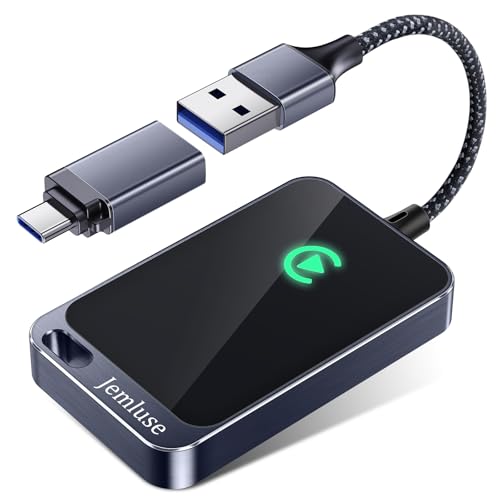
To reduce CarPlay/Android Auto GPS lag, make sure your phone’s location services are set to “High Accuracy” and that your phone software is current. A quality wireless CarPlay adapter can also stabilize the Bluetooth-to-Wi-Fi handoff that causes intermittent GPS drops during smartphone mirroring.
Jemluse Wireless CarPlay Adapter for Apple iPhone - Multi-User Seamless Connection for Convert Wired to Wireless Car Play Adapter - No Latency from iOS 10+...
When to Seek Professional Help and Prevent Future Issues
Most Lexus navigation problems resolve with software fixes. But some don’t.
Recognizing Persistent or Severe Problems
If you’ve performed multiple resets, updated your software, verified your Drive Connect subscription, and the problem persists, you’re likely dealing with a hardware fault. Repeated GPS signal loss after confirming a healthy battery and clear antenna line-of-sight points to a failing GPS module inside the shark fin antenna. Head unit failures typically show as repeated boot loops or permanent black screens that don’t respond to any reset.
“After 3 dealer visits and two software reflashes, they finally replaced my head unit under warranty. Should have escalated sooner.” via ClubLexus Forums
Preventative Maintenance and Updates
Keep your system healthy with a few simple habits:
Run OTA updates promptly, don’t dismiss the notification
Check your 12V battery health every 6 months (especially on hybrid models where the 12V battery works differently)
Verify your Drive Connect or Remote Connect subscription status through the Lexus App annually
Avoid aftermarket windshield tints with metallic particles that block GPS signals
Clear your navigation cache quarterly via Settings > Navigation > Clear Cache
These steps prevent the slow buildup of software issues that lead to sudden failures.
Working with Authorized Lexus Service Centers
When you do visit the dealer, bring documentation. Note your system software version, describe the exact error messages, and mention every reset you’ve already tried. This saves diagnostic time and prevents the technician from repeating steps you’ve already completed. Ask specifically for a “system reflash” rather than a simple reset, a reflash reinstalls the operating system from scratch and resolves deeper corruption that resets can’t touch.
For out-of-warranty vehicles, independent shops with Lexus diagnostic tools (like Techstream) can perform the same reflash at lower labor rates. Just confirm they have the latest software image before authorizing work.
Data Insights and Analysis
According to J.D. Power’s 2025 U.S. Vehicle Dependability Study, infotainment systems remain the number-one complaint category across all luxury brands, with navigation-specific issues accounting for a significant share of owner-reported problems (J.D. Power 2025 VDS). The 3G network sunset, completed by all major US carriers by early 2024, permanently disabled connected navigation features on an estimated 4+ million vehicles across multiple brands.
Expert Note: "The 'Map is Centering' loop isn't a server-side issue, it's a client-side cache timeout. The navigation module requests tile data from the cloud, receives a partial response, then the local cache manager fails to reconcile the incomplete data with the onboard map store. Clearing the navigation cache forces a clean handshake, which is why it works when a full system reset sometimes doesn't."
Frequently Asked Questions
What is the quickest way to fix Lexus navigation not working?
Press and hold the power/volume knob for 10–15 seconds to perform a Volume Knob Soft Reset. This clears temporary cache and resolves most frozen screens, loading loops, and cloud navigation failures in Lexus models. It’s the fastest fix before trying other troubleshooting steps.
Why does my Lexus navigation keep saying ‘Map is Centering’ and won’t load?
The ‘Map is Centering’ loop occurs when cloud navigation requests data but receives incomplete responses, causing the local cache to fail reconciliation. Turn off Wi-Fi and Bluetooth, perform a soft reset, then open navigation before reconnecting devices to force onboard maps to load first.
Can I use Lexus navigation after the 3G network shutdown?
Yes. Older 2010–2018 models can use standalone onboard navigation by updating maps via USB using the Lexus Navigation Updater. Alternatively, use Apple CarPlay or Android Auto for GPS functionality on compatible models with aftermarket adapters.
How do I check if my Lexus navigation software is up to date?
Go to Settings > General > System Information to view your current software version. As of May 2026, the latest build should be from Q1 or Q2 2026. If outdated, connect to a strong Wi-Fi network and manually restart any pending OTA updates under Settings > Software Update.
What causes ‘Searching for GPS’ errors in Lexus vehicles?
This error stems from weak GPS antenna signals (often due to metallic windshield tint), degraded shark fin antenna modules, or software glitches preventing receiver initialization. Start with a volume knob soft reset and check for antenna obstructions or tint interference.
What’s the difference between Drive Connect and Remote Connect in Lexus?
Remote Connect handles remote lock/unlock, vehicle finder, and engine start features. Drive Connect provides cloud-based navigation, real-time traffic data, and fuel station search. You need an active Drive Connect subscription specifically for cloud navigation to function.
Disclaimer: This content is provided for educational and informational purposes only. Equipment symptoms, repairs, and diagnostic procedures may vary by make, model, year, and condition. Always consult a qualified technician, your equipment’s service manual, and verified manufacturer recalls or service bulletins before performing repairs. GearFixes.com assumes no liability for damages resulting from the use of information on this site.